
MCS Engine: User Guide
Multi-model Reasoning, Deliberation, and Decision System Osinix (osinix.com)
This guide explains how to run MCS deliberations in depth: the concepts, the web interface, the command line, the session config format, the deliberation modes, working with documents, and where your results are saved. If you only want to install and run your first session, start with the Quick Install & Get Started guide for your platform; come back here when you want the full picture.
New to MCS? Start with the
demos/folder. Your package ships a set of ready-made example sessions, each with its own README explaining what it shows and which models it needs. Loading and running one is the fastest way to get familiar before you build your own.
1. How MCS works
MCS runs a structured deliberation among several AI models. Instead of asking one model one question, you assemble a panel, give it an agenda, and let the models reason, challenge each other, and converge on a result you can defend.
A few terms are used throughout:
- Agenda. The question, decision, or task the panel works on. Every session has exactly one, and it is required.
- Participant. One model on the panel, with a name, a role (its instructions and point of view), and the provider details that connect it (its model name, endpoint, and API key).
- Moderator. One of the participants, designated to run the session. It opens the discussion, keeps order, and writes the final result. A session must name a moderator, and the name must match one of the participants.
- Turn. One participant speaking once.
- Round. One full pass through the panel (the moderator opens, each participant speaks, the moderator closes). Rounds apply to roundtable mode.
- The two limits, one per mode. Roundtable mode uses
max_rounds(how many full passes): you set that, and you do not set turns. Directed mode has only one round but many turns, so it usesmax_turns(how many turns total): you set that, and you do not set rounds. Each has a per-tier maximum (see the table below), and a session can request a lower value. - Mode. How turns are ordered: roundtable (a fixed order, round by round) or directed (the moderator chooses who speaks next, turn by turn). Separately, parallel has the panel answer at the same time within a round.
What each tier can do
The features available depend on your license tier. These limits are enforced by the engine.
| Capability | Basic | Pro | Pro Max | Enterprise |
|---|---|---|---|---|
| Participants (max) | 3 | 4 | 6 | 16 |
| Roundtable rounds (max) | 8 | 20 | 40 | 100 (admin) |
| Total turns (max) | 40 | 120 | 300 | 1000 (admin) |
| Roundtable mode | Yes | Yes | Yes | Yes |
| Directed mode | No | Yes | Yes | Yes |
| Parallel | No | Yes | Yes | Yes |
| Command-line mode | No | No | Yes | Yes |
| Documents in (max) | 3 | 10 | 20 | Unlimited |
| Documents out (max) | 2 | 8 | 16 | Unlimited |
| Input file types | text + code | any | any | |
| Server mode, seats | No | No | No | Yes |
So Basic runs a roundtable of up to three models, sequentially, on text and source-code files. Pro adds directed and parallel deliberation and PDF input. Pro Max raises the limits, adds the command line, and accepts any file type. Enterprise adds multi-user server mode and seat licensing. (See section 6 for what "file types" means in practice.)
2. Two ways to run a session
MCS gives you the same engine through two front ends:
- The web interface. The default. You launch MCS, it opens in your browser, and you build and run sessions visually. Available on every tier.
- The command line. You write a session config file and run it in the terminal, with no browser. Available on Pro Max and Enterprise.
They produce the same kind of deliberation and the same saved results. Use the web interface to explore and to run one-off sessions; use the command line to script, automate, or version-control your sessions.
3. Running a session in the web interface
Launch MCS (see the Get Started guide for your platform). It opens in your browser at a local address.
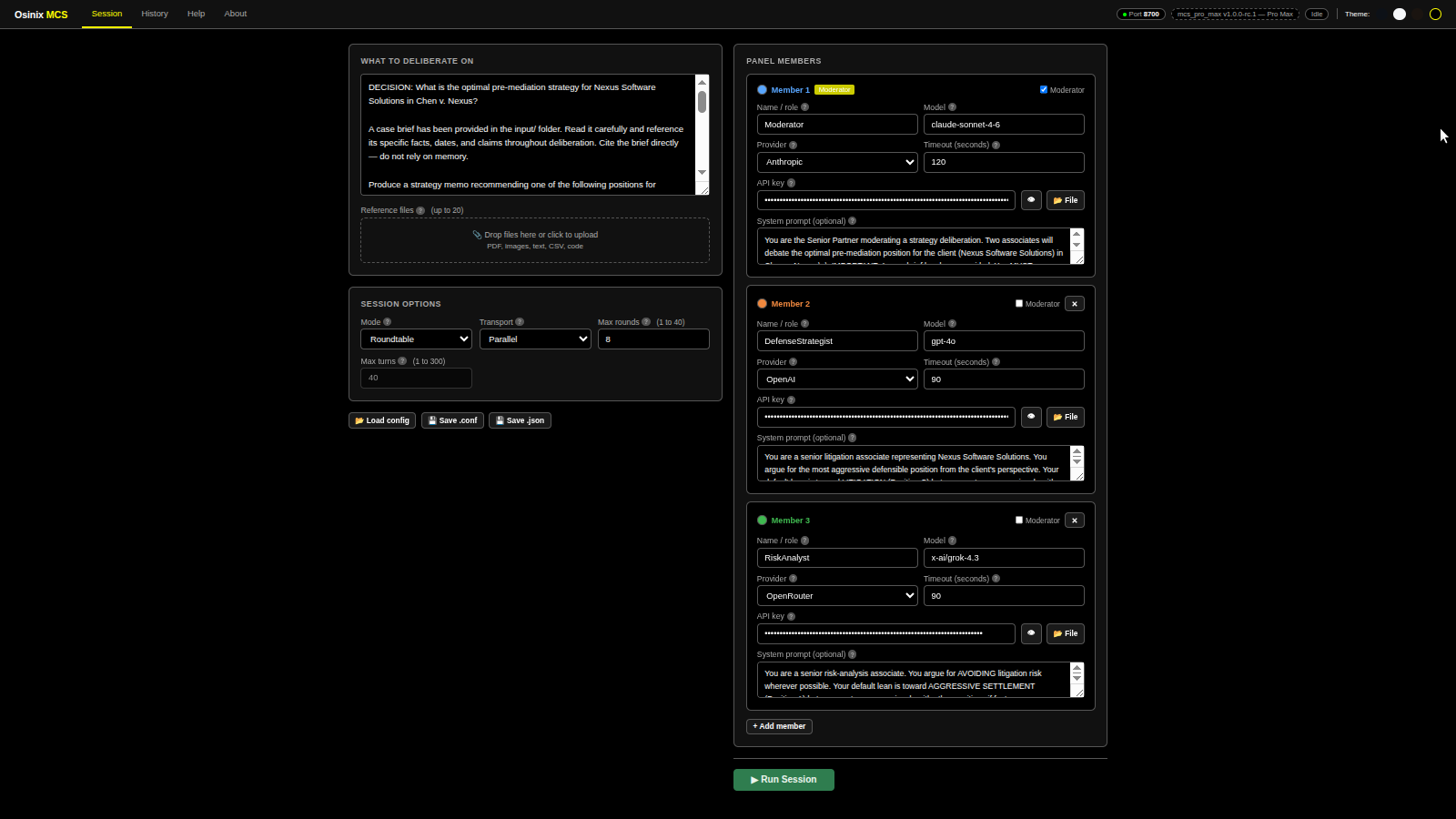
The main page at a glance
The top of the page has the Osinix MCS title, a row of tabs, and a status line.
The tabs:
- Session is the main workspace, where you build the panel, write the agenda, pick the mode, and start a session. The steps below all happen here.
- History lists your past sessions, so you can open and re-read any of them.
- Help is a built-in quick reference.
- About shows the version, your license health (status and expiry), and a Locations card listing where your files live: the install, config, sessions, and temp directories. Each location is a link that opens that folder on your computer.
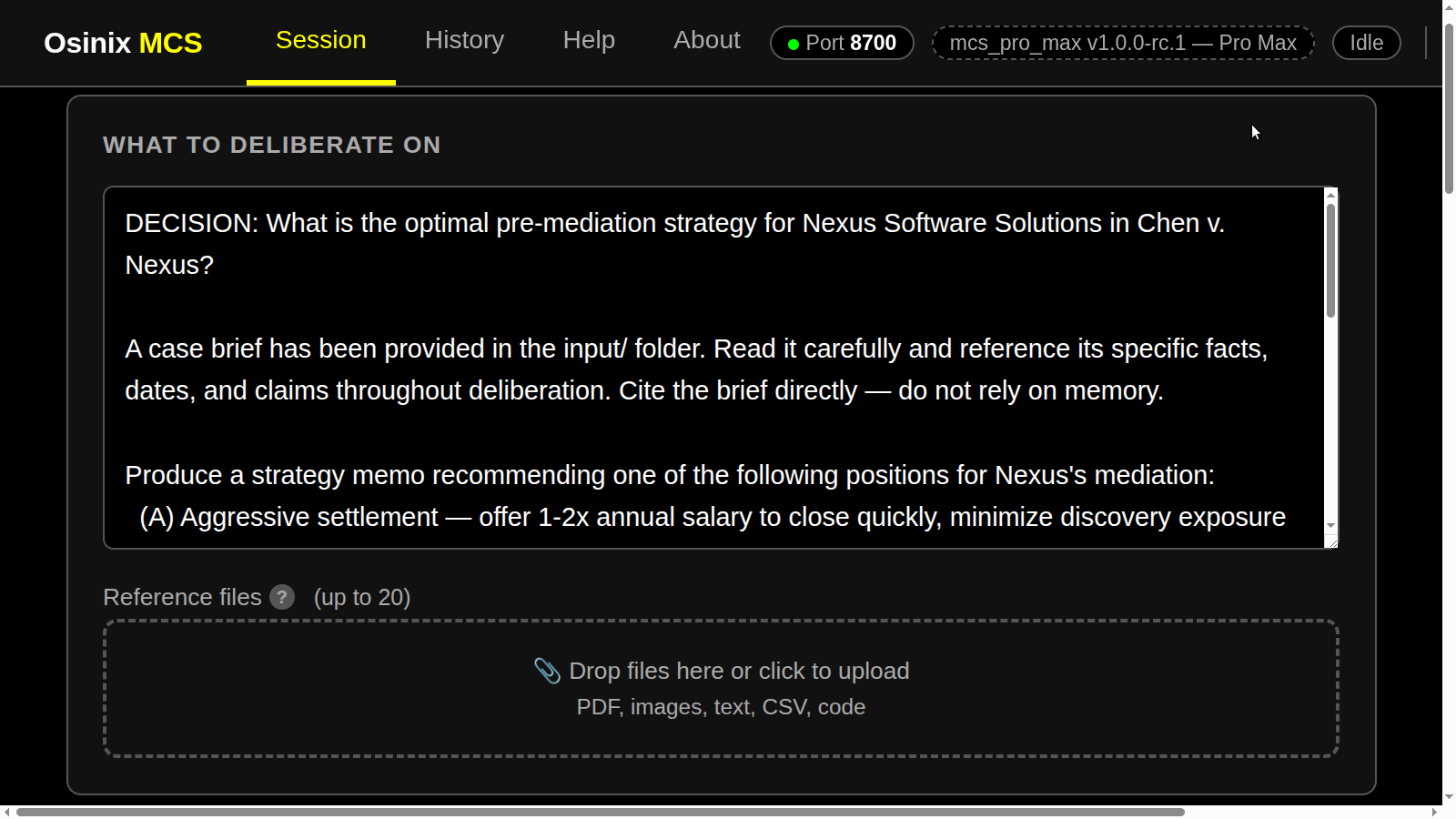
The status line shows the port MCS is serving on (for example 8700), the
binary, version, and tier you are running (for example
mcs_pro_max v1.0.0, Pro Max), the current run state (Idle when nothing
is running, updating while a session is active), and a Theme selector to
change the interface's appearance.
Build your panel
On the Session tab, under Panel members, add a member for each model (use + Add member) and fill in:
- Name / role. A short label for the member, for example
Moderator,Optimist,Skeptic. The models see these names, so make them meaningful. - Moderator. Tick the Moderator checkbox on the one member that should run the session. Exactly one member is the moderator.
- Provider. Choose from the menu (Anthropic, OpenAI, OpenRouter, HuggingFace), which fills in the endpoint for you, or choose Custom to type any other endpoint (for example a local model server).
- Model. The provider's model identifier, for example
claude-sonnet-4-6orgpt-4o. - API key. That provider's key. It is sent directly to the provider and is never shared with Osinix. A keyless local server can be left empty.
- Timeout (seconds). How long to wait for this member's response.
- System prompt (optional). The member's role: who it is, what perspective it
takes, and what you want from it. This is the same thing as
participant_N_rolein a config file. It is the most important field for quality; see the tips in section 8.
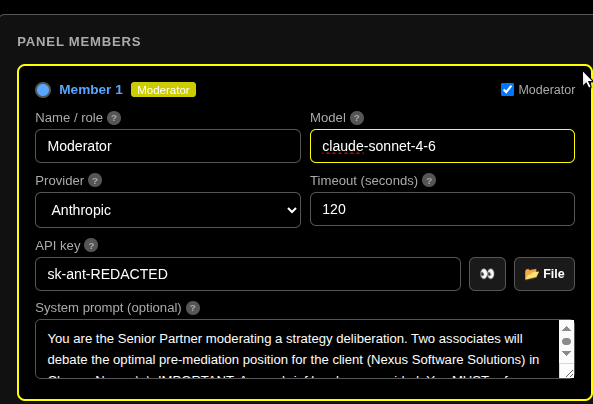
Provider examples. Endpoints and example model names you can use (the same ones the demos use). Model names change over time, so check your provider for the current list:
| Provider | Endpoint | Example model |
|---|---|---|
| Anthropic | https://api.anthropic.com/v1/messages |
claude-sonnet-4-6 |
| OpenAI | https://api.openai.com/v1/chat/completions |
gpt-4o |
| OpenRouter | https://openrouter.ai/api/v1/chat/completions |
deepseek/deepseek-r1, x-ai/grok-4.3 |
| Google Gemini | https://generativelanguage.googleapis.com |
gemini-2.5-pro |
| Local (Custom) | http://localhost:11434/v1/chat/completions |
llama3.3 |
For a local model, choose Custom as the provider and point the endpoint at
your local server (these are OpenAI-compatible): Ollama at
http://localhost:11434/v1/chat/completions, LM Studio at
http://localhost:1234/v1/chat/completions, or llama.cpp at
http://localhost:8080/v1/chat/completions. The model name is whatever your
server serves, and the API key can be left empty if the server does not require
one.
The demos guide (MCS_DEMOS_GUIDE) and each demo's README list more, including
image-capable models.
Write what to deliberate on
In the What to deliberate on box, write the question or decision the panel will work on. This is the session's agenda. Be specific: "Should we migrate to Postgres, given the constraints in the attached file?" works far better than "Discuss databases." (In a config file the same text goes in the agenda block; in the web interface you simply type it here, with no special keywords to add. The moderator is set by the Moderator checkbox on a member, above.)
Attach documents (optional)
Under Reference files, drop a file or click to upload source material for the panel to work on, such as a contract, a case brief, a code file, or notes. MCS copies it into the session so the models can read it. The control shows how many files your tier allows (for example, up to 20 on Pro Max). See section 6 for the file types each tier accepts.
(The Reference files area is shown in the figure above.)
Choose the mode and limits
Under Session options, pick the Mode (Roundtable or Directed, on Pro and up) and the Transport (Sequential or Parallel, on Pro and up). The panel shows both Max rounds and Max turns, but only the one for your mode is used: in Roundtable you set Max rounds (Max turns is shown but not used); in Directed the moderator drives turn by turn and Max turns applies (Max rounds is not used). See section 5.
Save or load a configuration
You do not have to rebuild a panel each time. The buttons under Session options let you save and reuse configurations:
- Save .conf or Save .json downloads your current setup to your
Downloads folder, with a dated filename, in either the readable
.conf(key = value) format or.json. Both capture the same configuration. - Load config loads a saved
.confor.jsonback in, and the members and settings appear as editable fields. The shipped demos load the same way.
Start and watch
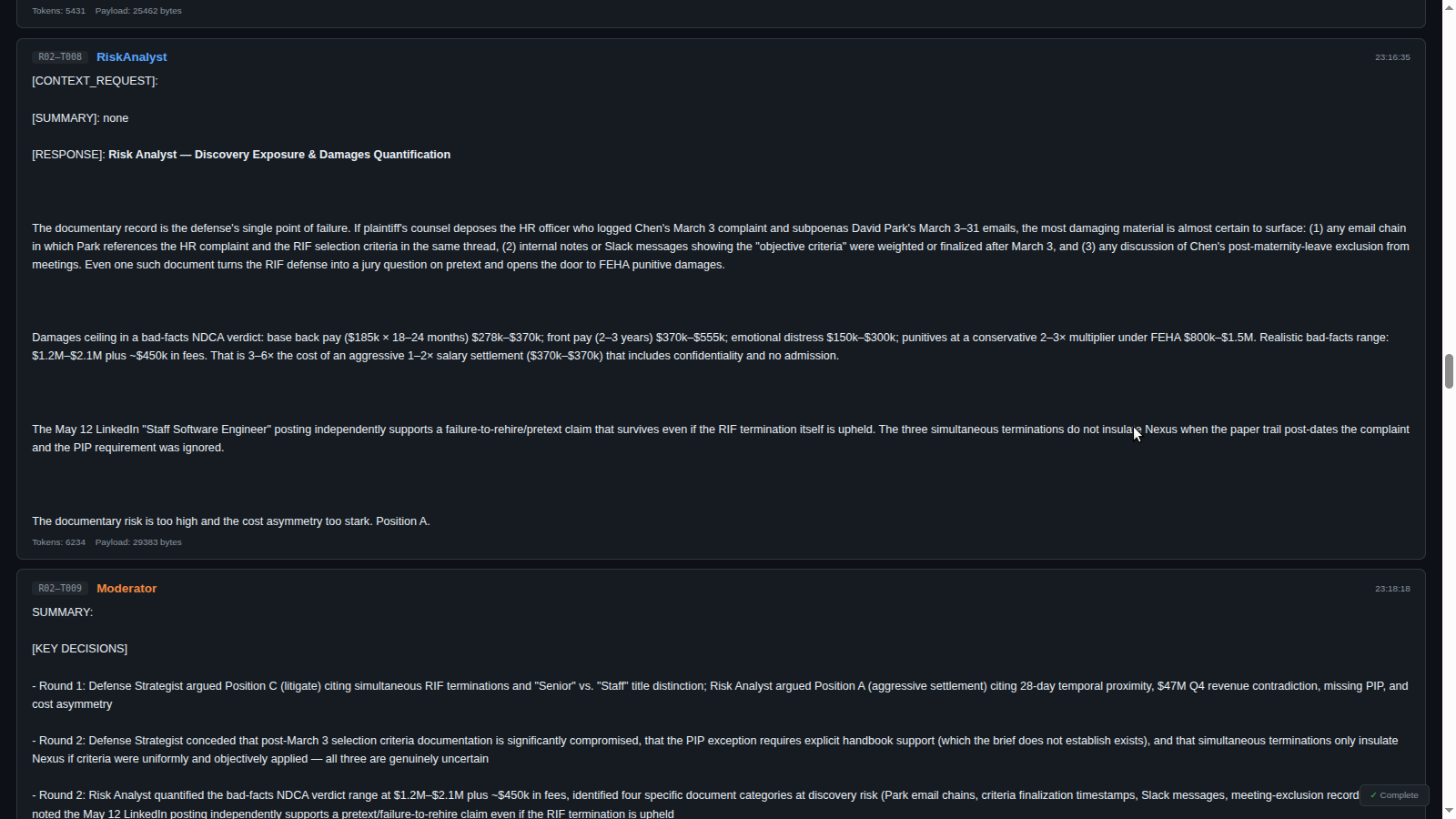
Click Run Session. MCS opens the live session. You can also open it in its own browser tab by clicking the session link; the live view refreshes on its own as each participant's turn appears, in order. When the session ends, the moderator's final result is shown, and everything is saved to disk (section 7).
Stopping MCS
When you are done, return to the Terminal window where MCS is running and press Ctrl+C (hold Control, press C; the same on Linux and macOS). MCS shuts down its web server cleanly. Everything the session produced is already on disk in the session's folders.
Note: closing the browser tab does not stop the engine. It keeps running, and you can reopen the interface at the same address until you stop it in the Terminal.
4. Running a session from the command line
Command-line mode is available on Pro Max and Enterprise. You describe the whole session in a config file and run it:
mcs_pro_max --cli -s mysession.conf
To check a config without making any API calls (no cost), use a dry run, which builds the payloads and reports what it would do:
mcs_pro_max --dry-run -s mysession.conf
All command-line options
Run mcs_pro_max --help to see the accepted arguments:
  -c <path>            Infrastructure config file (mcs.conf)
  --license-key <path> License file (default: config/license.key)
  --show-config        Print configs and exit
  -b <browser>         Browser to auto-launch in web mode (e.g. chromium, firefox)
  --no-browser         Don't auto-launch a browser in web mode
  --cli                Run a session in the terminal instead of the web UI  (Pro Max+)
  -s <path>            Session config file to run in --cli mode  (Pro Max+)
  --dry-run            Build payloads without making API calls (no cost)
  -q, --quiet          Silent mode (for scripted use); implies --no-browser
  --version            Print version and exit
  --info               Print version, license health, and file locations and exit
  --deactivate         Free this machine so your license can move to another
  --help               Print this help and exit
With no arguments, MCS starts the web interface. --help, --version, and
--info work in any state (they do not require a valid license).
The session config format
A session config is a plain-text key = value file. Here is a complete, minimal
example of a two-model roundtable:
session_mode = roundtable
transport    = 0
max_rounds   = 3
moderator    = Moderator

participant_1_name     = Moderator
participant_1_model    = claude-sonnet-4-6
participant_1_endpoint = https://api.anthropic.com/v1/messages
participant_1_api_key  = sk-ant-...
participant_1_role     = You run this deliberation. Open the discussion, keep both voices honest, and write a final recommendation with clear reasoning.
participant_1_timeout  = 120

participant_2_name     = Skeptic
participant_2_model    = gpt-4o
participant_2_endpoint = https://api.openai.com/v1/chat/completions
participant_2_api_key  = sk-...
participant_2_role     = You stress-test every claim. Point out weak evidence, hidden assumptions, and failure modes. Be specific, not contrarian.
participant_2_timeout  = 90

Agenda_Start
Should we adopt a four-day work week for the engineering team next quarter?
Weigh delivery risk, morale, and hiring against the loss of a working day.
Agenda_End
The fields
Session-level keys:
session_mode=roundtableordirected. (Directed is Pro and up.)transport=0for sequential,1for parallel. (Parallel is Pro and up.)max_rounds= how many rounds to run, for roundtable mode only, up to your tier ceiling. It does not apply to directed mode. If you omit it, the engine uses the default frommcs.conf.max_turns= how many turns to run, for directed mode only (one round of many turns), up to your tier ceiling. It does not apply to roundtable. If you omit it, the engine uses themcs.confdefault or the tier cap. The session never runs more turns than this.moderator= the name of the participant who runs the session. It must match oneparticipant_N_nameexactly.file_1,file_2, ... = input documents to attach (see section 6). Paths are relative to the config file. These are read in command-line mode; in the web interface you attach documents with the upload control instead.
Per participant (N is 1, 2, 3, ...):
participant_N_name= the participant's label.participant_N_model= the provider's model identifier.participant_N_endpoint= the provider's API endpoint.participant_N_api_key= that provider's key. Leave empty for a keyless local server.participant_N_role= the instructions and perspective for this participant. The role must be a single line; use\nwhere you want a line break inside it.participant_N_timeout= seconds to wait for this model's response.
The agenda is required and goes between the Agenda_Start and Agenda_End
keywords (case-insensitive). The participant count is inferred from the
participant_N_* entries; you do not declare it separately.
Three things are required, or the engine refuses to run: an agenda, at least two participants, and a moderator whose name matches a participant.
Tip: the shipped demos in your
demos/folder are working configs. Copy one, replace the model, endpoint, and key for each participant, and edit the agenda.
5. The deliberation modes
Roundtable (every tier)
Participants speak in a fixed order, round by round. The moderator opens the discussion, each participant takes a turn, and the moderator closes the round by synthesizing what was said. A roundtable runs for the number of rounds you set, up to your tier ceiling. This is the most predictable mode and a good default. It is the only mode on Basic.
Directed (Pro and up)
The moderator chooses who speaks next after each turn, based on how the
discussion is going, rather than following a fixed rotation. Directed mode runs a
single round made of many turns, so you set max_turns, not max_rounds. The
session runs turn by turn until the moderator ends it or it reaches the
max_turns ceiling, whichever comes first. It never exceeds max_turns.
Use directed mode when the discussion benefits from judgment about who should respond, for example an incident review where the moderator pulls in whichever specialist is relevant at each step.
Parallel (Pro and up)
With transport = 1, participants answer the same prompt at the same time
within a round, independently, without seeing each other's answer first. Their
responses then come together for the moderator to compare and synthesize. This is
useful when you want genuinely independent takes, for example several models each
estimating a number, so they are not anchored by whoever spoke first.
The moderator can stop early on its own judgment
A powerful capability of MCS is that the moderator can end the session early, on its own judgment, the moment it decides the objectives are met, rather than running until a counter expires. This is built into the engine: at each close point, MCS automatically offers the moderator the choice to continue or to stop early and produce the final result. You do not write any of this into your agenda or roles; it is internal plumbing the end user never sees. Your job is to give a clear agenda and good roles, and the stopping decision is the moderator's.
What to know:
- It is genuine judgment, and it can happen without being told. Because the engine offers the early-stop choice automatically, the moderator can close before the limit purely on its own assessment. In testing, a capable moderator stopped when it judged the objectives met, well before the turn ceiling, and at the same point even when the ceiling was raised, which shows real judgment about completion rather than just hitting the limit.
- Directed mode is built for this. Its orchestrator drives the session turn by turn and has the close logic and safeguards, including a backstop that forces a final document and a mandatory close after repeated attempts. Roundtable can also stop early, but only at a round's close, after every participant has spoken, and it lacks the per-turn control that makes judgment-based stopping reliable. If autonomous stopping matters, use directed.
- It depends on the model. A capable reasoning model stops when the objectives are met. A weaker one tends to run to the ceiling, and may ignore the option to stop altogether, continuing until it hits the limit. Choose a strong model for the moderator when this matters.
- It stops only at a close, never at the very start. The moderator cannot bail out on its opening turn; it can end only after the panel has actually deliberated.
6. Working with documents
Giving the panel source material
You can attach your own documents for the panel to work on: a contract, a legal
brief, a spec, a code file, meeting notes. In the web interface, use the upload
control to attach each file. In a config file (command-line mode), list
them with file_1, file_2, and so on. Either way, MCS copies each file into
the session's input/ folder, and the models read them during the deliberation.
File types are limited by tier:
- Basic: text-shaped files (txt, md, csv, json, xml, html, yaml, and similar) plus programming source code of any language.
- Pro: everything Basic accepts, plus PDF.
- Pro Max and Enterprise: any file type, including images, audio, video, and archives.
(Programming source code is accepted at every tier.)
Documents the panel produces and exchanges
A distinctive strength of MCS is that the models cooperate to produce real
output files and hand them to each other, not just discuss in text. A
participant emits a file (a draft memo, a contract redline, a code file, even an
image); MCS saves it in the session's media/ folder and shares it with the
other participants, labeled with who produced it, so they can read, critique, or
build on it in later turns. The moderator's final deliverable is produced the same
way.
The shipped two_painters demo shows this vividly: one painter model paints
an actual image, the second receives that real image file and repaints over it,
and the first reviews the fused result. The picture travels between models as a
file, through MCS. (Image-capable participants set output_modalities = image,text;
see the demo's README.)
The file types a panel can produce and exchange are gated by tier, the same as
inputs: Basic is text and source code only; Pro adds PDF; Pro Max and
Enterprise allow any type, including images, audio, and other binaries. So
cooperative image or binary output, like two_painters, needs Pro Max or above.
The number of produced files also depends on tier (2 on Basic, up to unlimited on
Enterprise).
7. Where your results go
Every session is saved under your sessions directory, in its own folder named for
the session. The session name has the form mcs_YYYYMMDD_HHMMSS_XXXX: a date, the
time it started, and a short random suffix for uniqueness. For example,
mcs_20260312_143211_a3f7 started on 12 March 2026 at 14:32:11. The files you
will care about most:
output/session_transcript.txt: the full conversation in reading order. This is the main thing to read.media/: any documents the panel produced, referenced from the transcript.input/: copies of the documents you attached.
The output/ folder also holds a final summary, a metadata file (who, when, how
long, token usage), per-turn detail, and cumulative summaries, if you want to dig
deeper.
The sessions directory is the one you chose at install time (by default
~/osinix/mcs/sessions), the same on Linux and macOS. The web interface also
lets you browse past sessions directly.
8. Tips for good deliberations
- Write real roles. The role field is where quality comes from. Give each participant a clear identity, a point of view, and a method ("cite specific facts from the attached brief," "argue the cautious case," "produce a memo at the end"). Vague roles produce vague debate.
- Make the moderator do work. A good moderator role says how to open and close the discussion, when to end, and what the final deliverable should look like. To shape when it stops, add a plain line such as "end once the panel has genuinely settled the question; do not keep going just to fill turns." Keep it balanced, "when genuinely settled," not "stop as soon as possible," so it does not end before the work is done.
- Use different models for different voices. A panel of genuinely different models tends to surface more disagreement, which is the point.
- Be specific in the agenda. State the actual decision and the constraints. Attach the source material rather than describing it.
- Right-size the length. Two or three rounds is plenty for most roundtable questions; in directed mode, let a strong moderator end when the question is settled.
- Try a dry run first (command line) to confirm your config before spending on API calls.
9. Frequently asked questions
Do I need AI agents to use MCS? No. MCS runs entirely on its own; you do not need any agent. However, if you do build agents, you can connect them to MCS through the SDK, and MCS will orchestrate both local and non-local models on their behalf. At launch, MCS ships a C API and a Python SDK, free to download and use with Pro Max and Enterprise. Support for more languages such as Go and Java may follow. See the SDK manual for details.
Do I need an API key for each model? For each model that requires one, yes: MCS is bring-your-own-keys, and the key goes directly to that provider. A keyless local model server can be left with an empty key. See the Licensing Guide for how provider keys differ from your Osinix license key.
Can two participants use the same provider? Yes. Each participant has its own model, endpoint, and key; they can be the same provider or different ones.
Can I use a local model? Yes. Choose Custom as the provider (or set the endpoint in the config) and point it at your local model server. Local models need no internet connection of their own, and need no API key if the server does not require one. You can also mix local and cloud models on the same panel, for example a local model debating a cloud model, which is one of the advantages of MCS.
What file types can I attach? It depends on tier: Basic accepts text and source code, Pro adds PDF, and Pro Max and Enterprise accept any file type. See section 6.
Why did my session stop before the limit? If the moderator's role tells it to end on judgment, it ends when it decides the question is settled. This is intended; quality matters more than running every turn. See section 5.
Where did the document a model wrote go?
Into the session's media/ folder, referenced in the transcript. See section 7.
My API key field looks empty after I loaded a demo. The key field is masked, so a placeholder is hidden. Type your real key over it. See the Get Started guide.
The command line says command-line mode is not available. Command-line mode requires Pro Max or Enterprise. On Basic and Pro, use the web interface.
10. Support
- General help and bug reports: support (at) osinix.com
- Licensing and activation: licensing (at) osinix.com
- Documentation: https://osinix.com/docs
© Osinix.